In data visualization, real-time plotting can be a powerful tool to analyze data as it streams into the acquisition system. Whether temperature data, audio data, stock market data, or even social media data - it is often advantageous to monitor data in real-time to ensure that instrumentation and algorithms are functioning properly.
In this tutorial, I will outline a basic function written in Python that permits real-time plotting of data. The function is simple and straight-forward, but its powerful result allows any researcher or data analyst to take full advantage of data monitoring as it streams into the user's computer!
Python Real-Time Plotting Function
The GitHub repository containing the code used in this tutorial can be found at:
import matplotlib.pyplot as plt import numpy as np # use ggplot style for more sophisticated visuals plt.style.use('ggplot') def live_plotter(x_vec,y1_data,line1,identifier='',pause_time=0.1): if line1==[]: # this is the call to matplotlib that allows dynamic plotting plt.ion() fig = plt.figure(figsize=(13,6)) ax = fig.add_subplot(111) # create a variable for the line so we can later update it line1, = ax.plot(x_vec,y1_data,'-o',alpha=0.8) #update plot label/title plt.ylabel('Y Label') plt.title('Title: {}'.format(identifier)) plt.show() # after the figure, axis, and line are created, we only need to update the y-data line1.set_ydata(y1_data) # adjust limits if new data goes beyond bounds if np.min(y1_data)<=line1.axes.get_ylim()[0] or np.max(y1_data)>=line1.axes.get_ylim()[1]: plt.ylim([np.min(y1_data)-np.std(y1_data),np.max(y1_data)+np.std(y1_data)]) # this pauses the data so the figure/axis can catch up - the amount of pause can be altered above plt.pause(pause_time) # return line so we can update it again in the next iteration return line1
A few notes on the function above:
line1.set_ydata(y1_data) can also be switched to line1.set_data(x_vec,y1_data) to change both x and y data on the plots.
plt.pause() is necessary to allow the plotter to catch up - I've been able to use a pause time of 0.01s without any issues
The user will need to return line1 to control the line as it is updated and sent back to the function
The user can also customize the function to allow dynamic changes of title, x-label, y-label, x-limits, etc.
Example Using Random Data
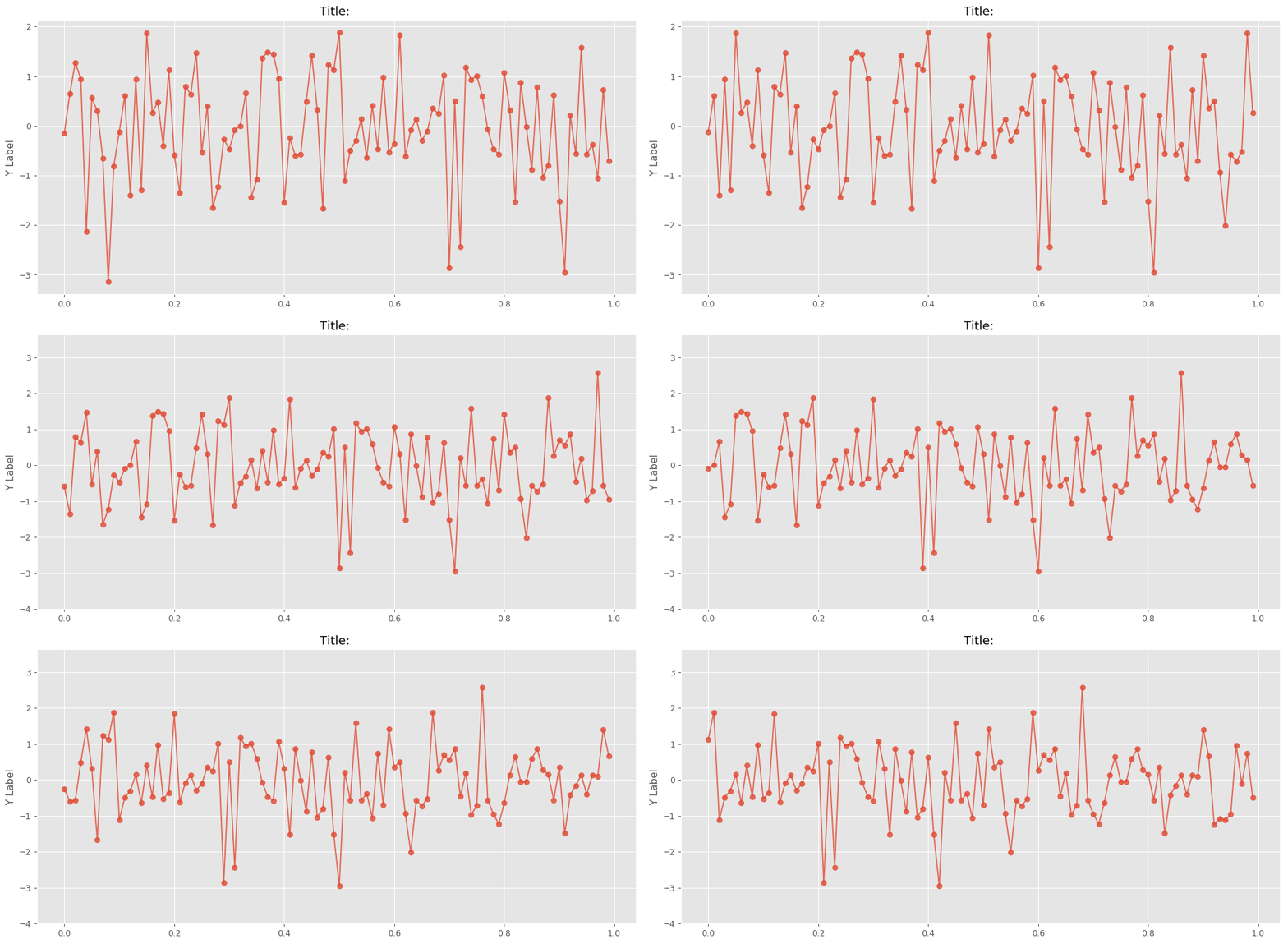
The simplest way to test the live plotter is to input random data and watch it work! I wrote a simple script that uses numpy to generate random data and plot using the function above. This example is also in the GitHub repository and is the script used to generate the .gif image shown at the top of this blog post [click here to see it again].
from pylive import live_plotter import numpy as np size = 100 x_vec = np.linspace(0,1,size+1)[0:-1] y_vec = np.random.randn(len(x_vec)) line1 = [] while True: rand_val = np.random.randn(1) y_vec[-1] = rand_val line1 = live_plotter(x_vec,y_vec,line1) y_vec = np.append(y_vec[1:],0.0)
Notice how in the above script, I do not re-plot the x-axis data. This enables us to quickly update the y-data. This is the fast-moving advantage of the line1.set_ydata(y1_data) method as opposed to the traditional plt.plot() method. The script above could also be used to update both x and y data, but more issues arise when handling both x and y movement. The x-axis limits would need to be actively moving its bounds, as well as the y-axis limits. This is not impossible, however, I think one workaround advantage is to simply change the x-axis tick labels instead and leave the actual limits alone. To actively update the x-axis tick labels use the following method:
line1.axes.set_xticklabels(date_vector)
This will maintain the limits, the x-axis tick alignments, the bounds, but change the labels on the x-axis.
Conclusion and Continuation
This short blog post introduced a simple live plotting function for Python. The live plotting function is capable of producing high-speed, high-quality, real-time data visualization in Python using matplotlib and just a few lines of code. In my next post on this subject, I will introduce live visualization of words using the same method outlined above. The word visualization will mimic a visualization method called a 'word cloud' and update words based on Wikipedia updates in real-time.
“As an Amazon Associates Program member, clicking on links may result in Maker Portal receiving a small commission that helps support future projects.”
See more in Programming:
In this tutorial, a 1.54 inch e-Paper module is wired to a BLE-Nano Arduino board to communicates via SPI and display text in real time over Bluetooth. The e-Paper module here can be powered via 3.3V or 5.0V, requires very low power when refreshing (2mA-8mA), and can be completely powered off while retaining its text. An Android smartphone and the BLExAR app will be used to print text on the e-Paper display in real time, demonstrating the capabilities of electronic paper technology.
Radio Frequency Identification, or RFID, is a widely used technology developed for storing and retriving information in radio frequency-enabled devices. Most often, RFID systems consist of one or multiple RF tags, an RF reader, and a database. In this tutorial series, passive, high frequency (13.56 MHz) RFID tags are the focus, as they are very compact, inexpensive, and require no external battery power. Using an Arduino board, a common RFID reader (MFRC522), and a few RFID tags/cards, we will be exploring methods for reading and writing RFID information in an attempt to understand the how RFID communication works and the limits of the technology.
This is the third tutorial in a series dedicated to exploring the Raspberry Pi Foundation's groundbreaking new microcontroller: the Raspberry Pi Pico. The first entry centered on the basic principles of interfacing with the Pico and programming with Thonny and MicroPython, while the second entry focused on emulating the Google Home and Amazon Alexa LED animations with a WS2812 RGB LED array. In this tutorial, an SSD1306 organic light emitting diode (OLED) display will be controlled using the Pico microcontroller. A MicroPython library will be used as the base class for interfacing with the SSD1306, while custom algorithms are introduced to create data displays. Additionally, a custom Python3 algorithm will be given that allows users to show a custom image on the display. Lastly, a real-time plot will be created that shows an audio signal outputted by a MEMS microphone, emulating a real-time graph display. The SSD1306 is a useful tool for smaller scale projects that require real-time data displays, control feedback, and IoT testing. The power of the Pico microcontroller makes interfacing with the SSD1306 fast and easy, which will be evident when working with the Pico and SSD1306.
This is the second entry into the Raspberry Pi Pico tutorial series dedicated to exploring the capabilities of the Raspberry Pi Foundation's groundbreaking new Pico microcontroller. A WS2812 RGB LED is controlled via the programmable I/O system (PIO) on the Pico microcontroller. The code and methods used to control the WS2812 are based on Raspberry Pi Pico Micropython SDK the project entitled "Using PIO to drive a set of NeoPixel Ring (WS2812 LEDs)." A state machine is used on the Pico to control the WS2812 LED array, which allows users to test a range of algorithms that affect the ring light. The light mappings will subsequently be capable of emulating the LED effects similar to those demonstrated by the Amazon Alexa or Google Home devices. A universal wiring diagram is given that allows for any number of LEDs to be wired to the Pico, which we tested up to 60 LEDs.
In this tutorial, methods for calibrating a magnetometer aboard the MPU9250 is explored using our Calibration Block. The magnetometer is calibrated by rotating the IMU 360° around each axis and calculating offsets for hard iron effects. Python is again used as the coding language on the Raspberry Pi computer in order to communicate and record data from the IMU via the I2C bus. The second half of this tutorial gives a full calibration routine for the IMU's accelerometer, gyroscope, and magnetometer. The final implementation will allow for moderate (first-order) calibration of the MPU9250 under reasonable conditions, requiring only the calibration block and IMU. Finally, the complete final code will save the coefficients for each sensor for future use in direct applications without the need for constant calibration. The use of the calibration coefficients will allow for improved estimates of orientation, displacement, vibration, and other relevant control and measurement analyses.
This is the second entry into the series entitled "Calibration of an Inertial Measurement Unit (IMU) with Raspberry Pi" where the gyroscope and accelerometer are calibrated using our Calibration Block. Python is used as the coding language on the Raspberry Pi to find the calibration coefficients for the two sensors. Validation methods are also used to integrate the IMU variables to test the calibration of each sensor. The gyroscope shows a fairly accurate response when calibrated and integrated, and found to be within a degree of the actual rotation test. The accelerometer was slightly less accurate, likely due to the double integration required to approximate displacement and the unbalanced table upon which the IMU was calibrated. Filtering methods are also introduced to smooth the accelerometer data for integration. The final sensor, the magnetometer (AK8963), will be calibration in the next iteration of this series.
The INMP441 MEMS microphone is used to record audio using a Raspberry Pi board through the inter-IC sound (I2S or I2S) bus. The I2S standard uses three wires to record data, keep track of timing (clock), and determine whether an input/output is in the left channel or right channel. First, the Raspberry Pi (RPi) needs to be prepped for I2S communication by creating/enabling an audio port in the RPi OS system. This audio port will then be used to communicate with MEMS microphones and consequently record stereo audio (one left channel, one right channel). Python iS then used to record the 2-channel audio via the pyaudio Python audio library. Finally, the audio data will be visualized and analyzed in Python with simple digital signal processing methods that include Fast Fourier Transforms (FFTs), noise subtraction, and frequency spectrum peak detection.
Cartopy is a cartographic Python library that was developed for applications in geographic data manipulation and visualization. It is the successor to the the Basemap Toolkit, which was the previous Python library used for geographic visualizations. Cartopy can be used to plot satellite data atop realistic maps, visualize city and country boundaries, track and predict movement based on geographic targeting, and a range of other applications relating to geographic-encoded data systems. In this tutorial, Anaconda 3 will be used to install Cartopy and related geographic libraries. As an introduction to the library and geographic visualizations, some simple tests will be conducted to ensure that the Cartopy library was successfully installed and is working properly. In subsequent tutorials: shapefiles will be used as boundaries, realistic city streets will be mapped, and satellite data will be analyzed.
In this tutorial, an ultrasonic sensor (HC-SR04) will be used in place of a radio emitter; and a plan position indicator will be constructed in Python by recording the angular movements of a servo motor. An Arduino board will both record the ranging data from the ultrasonic sensor while also controlling and outputting the angular position of the servo motor. This will permit the creation of a PPI for visualizing the position of various objects surrounding the radar system.
The Raspberry Pi Pico is a microcontroller designed by the Raspberry Pi foundation. The Pico is a groundbreaking board that is meant to use MicroPython in its native micro USB port. The RP2040 is the microcontroller chip at the center of the Pico, which has a dual-core Arm Cortex M0+ processor, capable of clocking at 133 MHz, which is much faster than many of the Arduino boards currently on the market. The Pico has GPIO pins and interfaces such as: SPI, UART, I2C, PWM, and a 12-bit analog-to-digital converter (ADC). This Raspberry Pi Pico comes with the Pico microcontroller, 2x 20-pin solder header, and a micro-USB cable.
Included with the Raspberry Pi Pico Microcontroller:
1x Raspberry Pi Pico Board
2x 20-pin Headers
1x Black 0.5m Micro USB Cable
Features of the Raspberry Pi Pico:
1.8V - 5.5V Input Voltage
21 mm × 51 mm Board Geometry
RP2040 microcontroller
Dual-core Arm Cortex-M0+ processor (Clock Speed up to 133 MHz)
264KB on-chip SRAM, 2MB on-board QSPI Flash
26x GPIO pins (3x 12-bit Analog Inputs)
2x UART, 2x SPI, 2x I2C, 16x PWM
1x USB 1.1 controller and PHY, with host and device support
8x Programmable I/O (PIO) state machines for custom peripheral support
Operating temperature -20°C to +85°C
Low-power sleep and dormant modes
Onboard Temperature sensor
Accelerated integer and floating-point libraries on-chip
The MLX90640 is a 768-pixel (32 x 24), low-cost thermal camera. It uses an array of infrared detectors (and filters) to detect the radiation given off by nearby objects by taking advantage of Planck’s radiation law. The MLX90640 is most notable because of its easy-to-use Python libraries that allow it to be read by Raspberry Pi computers. The MLX90640 can be used to map and record high-resolution temperature maps at refresh rates of up to 64 times per second (64Hz).
NOTE: There are two versions here, 1. an unsoldered board that needs to be soldered to be wired properly; and 2. a version that has a breakout connector that can be connected directly to a Raspberry Pi via the JST Dupont connector.
Included in the MLX90640 Thermal Camera Sensor Package:
1x MLX90640 Thermal Camera (32 x 24 Pixels, 55° x 35°)
Pin Header
5x Male-to-Female Jumper Wires (or JST Dupont connector for breakout version)
Features of the MLX90640 Thermal Camera:
Object Detection Temperatures: -40°C to +300°C
3V-6V Supply Voltage
20mA Average Current Consumption
32 x 24 Resolution, 768 Pixels in Total
55° x 35° Field of View
I²C Communication (Address: 0x33)
Ambient Temperature Operating Range: -40°C to +85°C
Raspberry Pi and Arduino Compatible
JST Dupont Breakout Pinouts:
Black for GND
Red for V+
Blue for SDA
Yellow for SCL
MLX90640 Datasheet
What comes in this package:
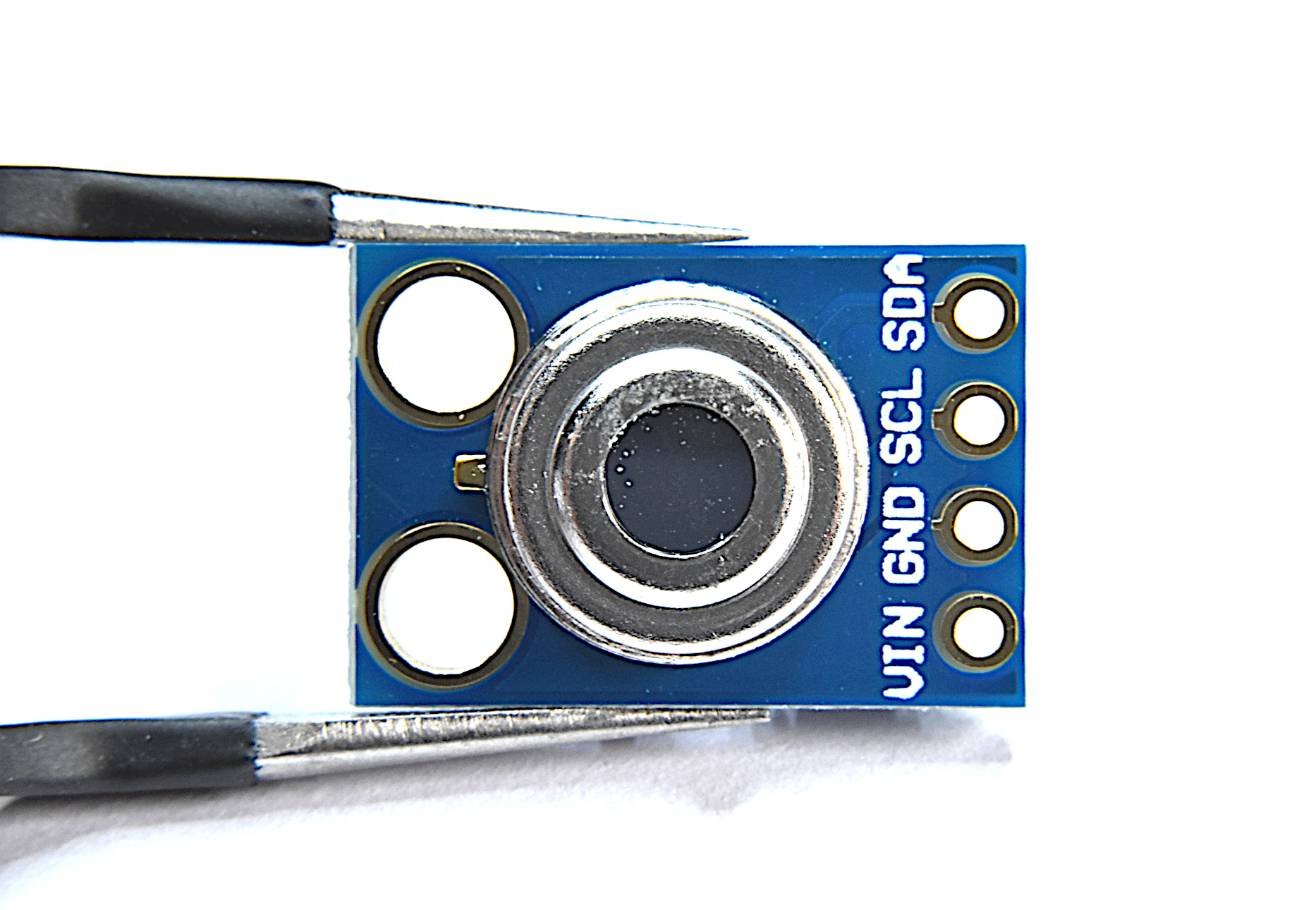
MLX90614 IR sensor
MLX90614 Specs:
3-5V Operating Voltage
-70 °C to 380 °C Object Temperature Measurement Range
0.5 °C Accuracy (0-50 °C)
0.02 °C Measurement Resolution’
At 35° Viewing Angle, Temperature is half the 0° Angle Value
I2C Wiring works with Arduino and Raspberry Pi
Full Datasheet download here
Included in Package:
1x NEO-6M GPS Module (GY-GPS6MV2)
1x Ceramic Antenna
1x 4-Pin Solder Pin Header
Module Description:
Power Supply: 3V-5V
EEPROM
LED Indicator
Backup battery
Baud Rate: 9600
Mounting Holes: 3mm
Module Dimensions: 23mm x 30mm
Antenna Dimensions: 25mm x 25mm
Antenna Cable Length: 50mm
Arduino UART Compatible
Analog joysticks can be found in video game controllers, drone and remote-controlled vehicle controllers, and heavy machinery controllers. They’re great for just about any precision control project where human interfacing is desired. The analog joystick here is one that is compatible with both Arduino and Raspberry Pi - and is a great tool for learning coding, robotic control, and functional interaction between humans and computers.
Included in the Analog Joystick Package:
1x Analog Joystick Controller
5x Female-to-Male Jumper Wires
Some Features of the Analog Joystick:
5V Input Supply
2-D Rotational + 1-D Push Analog Responses
360° Rotation in 2-D Plane
Rubber Joystick Finish for Gripping
Smooth Rotation
Clicking sound for Push Notification
Compatible with Raspberry Pi + Arduino
Code for measuring joystick rotations can be found at this tutorial:
The MG90S Micro Servo is a 13g servo motor that is great for applications in low-cost robotics and automation. The MG90S can be powered directly from any 5.0V Arduino board, and can be controlled using the servo library included in most Arduino IDEs.
Included with the MG90S Micro Servo Package:
1x MG90S Micro Servo
1x Set of horns and screws (6 pcs)
3x Jumper Wires (Male-to-Male)
Some Features of the MG90S:
Input Voltage: 4.8V - 6.0V
Operating Current (5.0V): ~2.7mA (idle), ~70mA (no load), ~400mA (Stall)
Rotation Angle: 0° - 180° (Resolution: 1°)
Max Speed (5.0V): 0.6 deg/ms (full 180 degrees in 300 ms)
Largest Dimensions: 12mm x 32.5mm x 32.5mm
MG90S Datasheet
NOTE: These are not genuine Tower Pro motors
A full tutorial with the MG90S, including code and general working principles, is given here.
Soil moisture can be measured using a variety of different techniques: gravimetric, nuclear, electromagnetic, tensiometric, hygrometric, among others. This sensor uses a capacitive method that exploits the dielectric properties of water in soil. Accurate measurement of soil water content is essential for applications in agronomy and botany - where the under- and over-watering of soil can result in ineffective or wasted resources.
Included in the Capacitive Soil Moisture Sensor Package:
1x Capacitive Soil Moisture Sensor
1x 3-Wire Connector
Features of the Capacitive Soil Moisture Sensor:
3.3V - 5.0V Supply Range
3.3V Operating Range
Analog Output 1.5 - 3.3V
Correlated with Volumetric Water Content 0 % - 100%
Compatible with Arduino and Raspberry Pi
Full tutorial can be found on blog here.
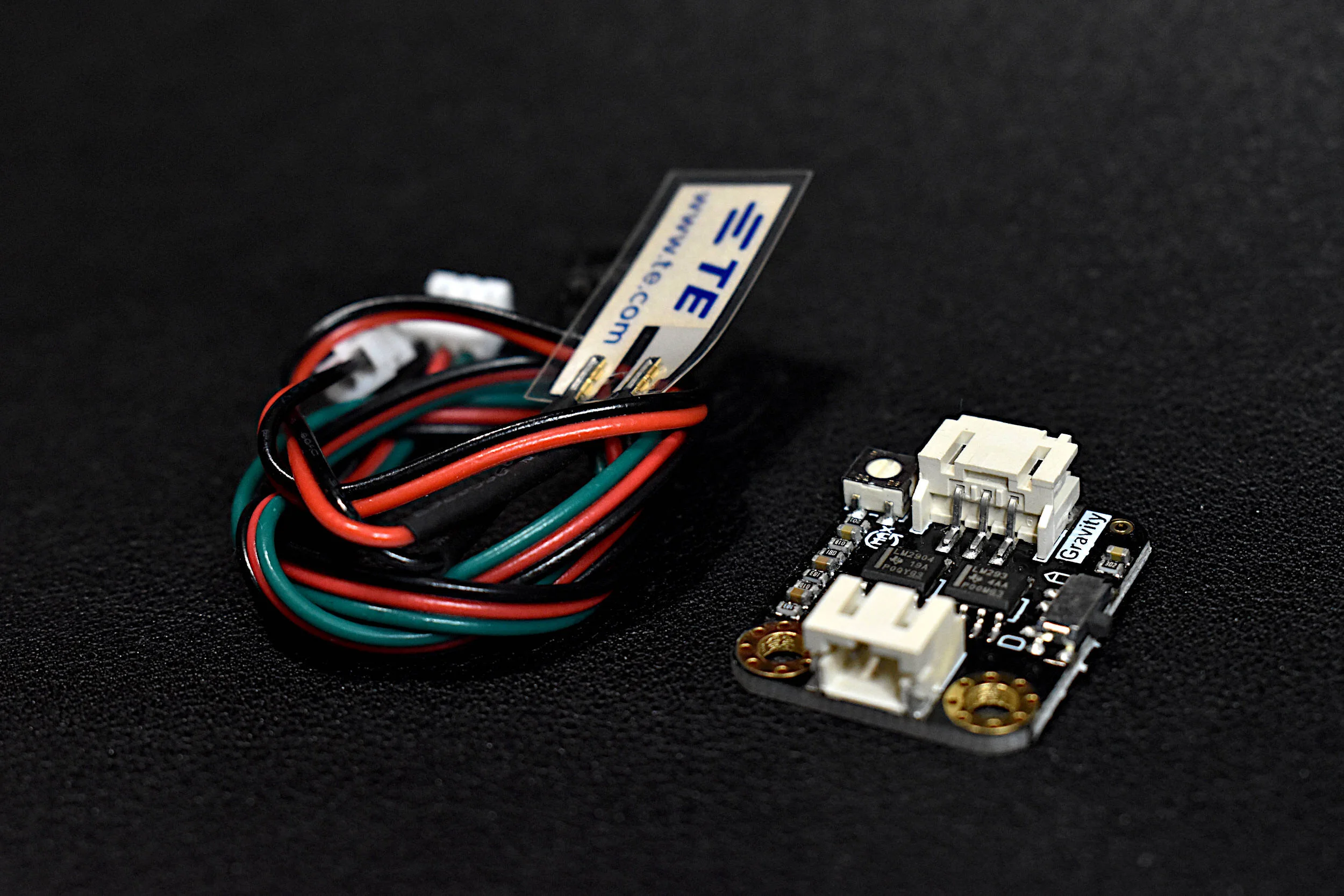
The piezo film sensor includes a tiny film that is capable of measuring minute vibrations and deflections from materials. The film sensor kit also comes with an amplifier that allows the user to determine the direction of the deflection as well as the approximate amplitude that is meaningful for either frequency or amplitude analyses in vibration.
Included in the Piezoelectric Vibration Sensor Kit:
1x piezo film
1x piezo amplification system
2x connecting wires
A vibration tutorial using the piezo film can be found on our site here.
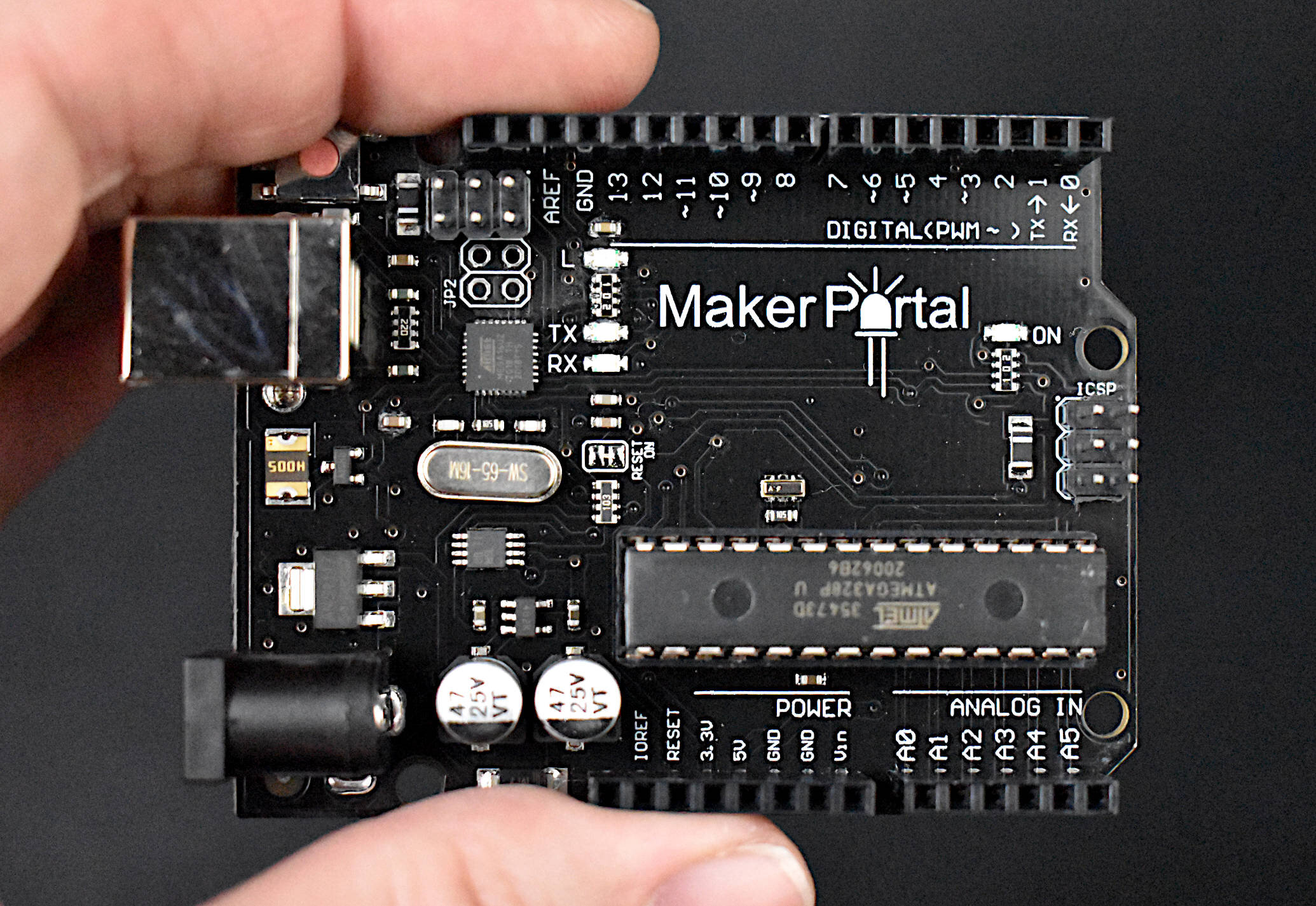
The Maker Portal Uno board is the centerpiece of many of the projects carried out in our maker spaces. The Uno board is capable of reading a wide range of sensors using analog-to-digital conversion, SPI, I2C, UART, and other common protocols. The Uno board can be used to control motors, OLED/LCD displays, and LEDs. The Arduino Uno board shown here is the official Maker Portal microcontroller, which we use in many of our projects!
Included in the Arduino Uno Package:
Maker Portal Arduino Uno Rev3 Board
Black USB Cable (1m in Length)
Specifications for Arduino Uno Rev3 Board:
ATmega328P chip with Arduino Bootloader
14 digital pins, 6 analog pins
10-bit analog-to-digital converter (ADC)
5V-12V Supply Tolerance
3.3V and 5.0V output pins
16 MHz clock
5 PWM pins, I2C support, SPI support , UART support
ATmega16U2 USB TTL, compatible with Linux, Windows, and Mac
Black Stylish Finish
Fully Integrated with Arduino IDE software
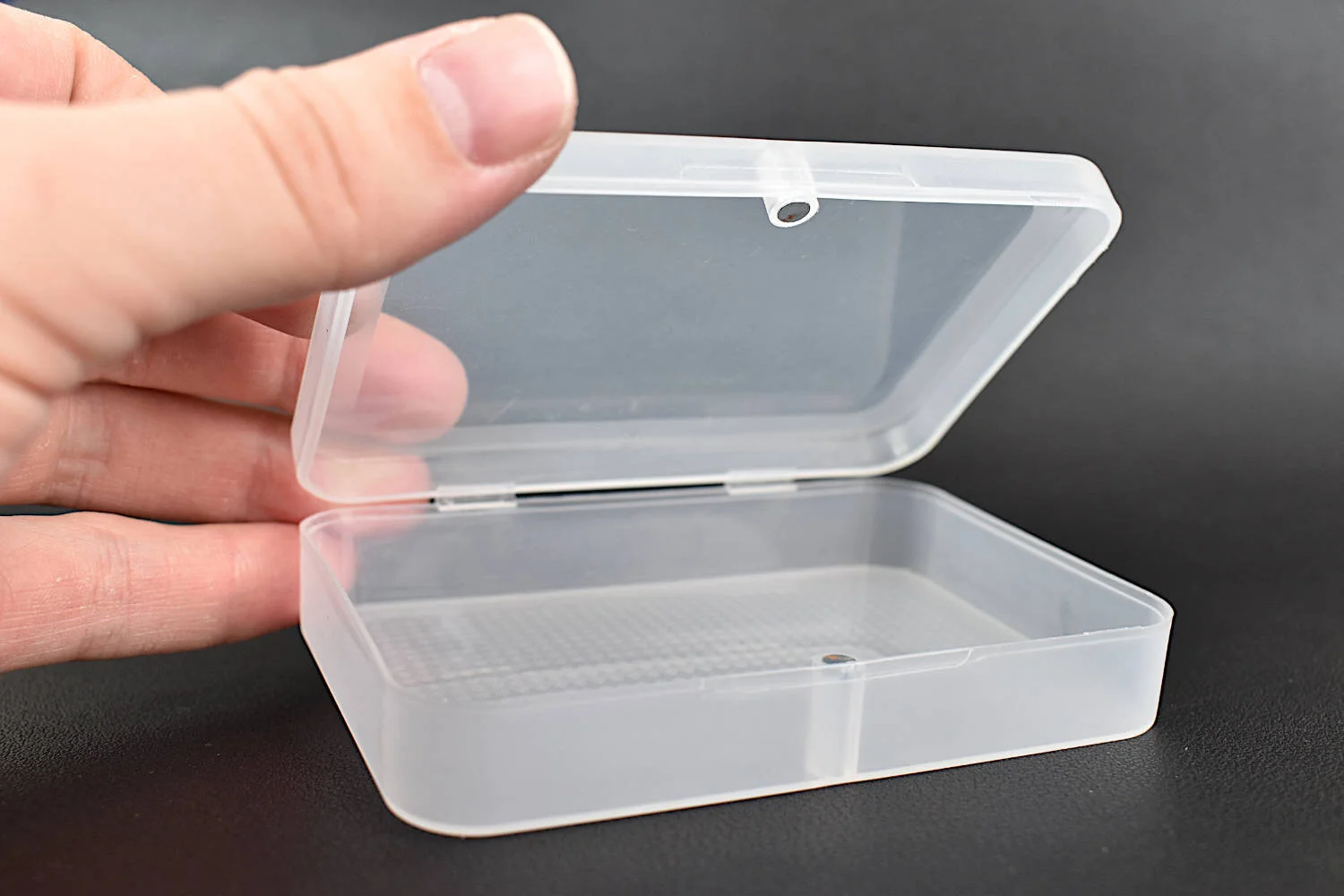
The component box here can fit an Arduino Uno board and several smaller sensors and jumper wires. It’s great for transporting a project from point A to point B while fitting in a pants pocket. The component box has a magnetic clasp that keeps the components secure inside. The box is also transparent, making it easy to distinguish one kit from another. The box is made from ABS plastic, which makes it sturdy and useful for preventing components from getting damaged in transit or storage.
Included in the Electronics Component Box Package:
1x Electronics Component Box
Features of the Electronics Component Box:
Dimensions: 100mm x 70mm x 21mm
Made from Strong ABS Plastic
Magnetic Clasp Closure
Fits an Arduino Uno Board and Several Sensors
Maker Portal is a blog-centric company intended for young innovators interested in real-world applications to engineering. Resources include: physical products, mobile applications, software development, e-learning, and blog-style article writing. The maker-based approach is explored using written articles with topics ranging from Raspberry Pi, heat transfer, acoustics, robotics, data analysis, Arduino, sensor design, Python programming, and much more. Difficulty levels range depending on the topic and there is extensive focus on open-source software implementation, however, there will be articles with a focus on software design as well. The intention is to demonstrate applications of engineering that are repeatable at the intermediate level without requiring colossal resources.
In the past, we explored the NEO-6M GPS module with Arduino through a few of our tutorials (see: "Comparing iPhone GPS Against NEO-6M with Arduino" and "Arduino GPS Tracker"). In this tutorial, we wanted to push the size limits of the portable GPS tracker by using a mini GPS module called the ATGM336H. The result is a pocket-sized GPS tracker with the low-profile by pairing the ATGM336H module with an Arduino Xiao microcontroller, SD Card Module, and 3.7V LiPo Battery. The prototype developed here will be an autonomous tracker that will record latitude/longitude at roughly 1-10 points per second (1Hz - 10Hz) and needs no external components to track geolocation. The prototype can fit in a users pocket and can track for several hours. We will also present a Python program that will plot the geolocation data points that the user can use to view the route tracked by the Arduino GPS datalogger system. The Python analysis demonstrates how well the ATGM336H GPS module and antenna are able to replicate the walking path of a human with great resolution and accuracy.